
Logging is one of those things in software development that doesn’t seem exciting — until something breaks. That’s when you realize that well-structured logs can save hours of debugging and frustration. With modern .NET, logging has evolved to be more flexible and powerful, especially with the Microsoft built-in logging framework. Combine that with Serilog (my personal favorite), and you’ve got yourself a logging setup that’s effective and developer-friendly.
Here’s how you can get started with logging in .NET, some best practices, and why you should integrate Serilog for the ultimate logging experience.
Why Logging Matters#
Logging is like leaving breadcrumbs for future-you (or your team) to follow when something goes wrong. It helps in:
- Troubleshooting: Quickly identify where an issue occurred.
- Monitoring: Understand what your application is doing in production.
- Auditing: Keep track of important events or transactions.
- Performance Analysis: Spot slow processes by timing critical operations.
Good logging practices can turn “It doesn’t work!” into “Aha, I see why this failed!”
Why Use Microsoft’s Built-in Logging Framework?#
.NET’s built-in logging framework is highly versatile. It integrates seamlessly with various logging providers like console, file, or external services such as Serilog, NLog, or Application Insights.
Some key benefits:
- Ease of Use: It’s built-in — no extra libraries are necessary to get started.
- Extensibility: You can plug in advanced logging frameworks like Serilog.
- Standardization: A single API across your application simplifies code and training.
Now, let’s dive into an example.
Getting Started with Logging in a Console Application#
First, create a new console application using .NET 9. We’ll use Microsoft.Extensions.Hosting and Microsoft.Extensions.DependencyInjection to set up our app. If you’re new to the HostApplicationBuilder, check out Microsoft’s documentation for a quick primer.
Step 1: Set Up the Host#
| |
Step 2: Add a Hosted Service#
A hosted service is an ideal way to demonstrate logging in action. Add a service called MyCustomHostedService.
| |
Adding Logging to the Service#
Now, let’s enhance MyCustomHostedService with logging.
Step 3: Inject the Logger#
Make the class partial and use the primary constructor to inject an ILogger.
| |
Step 4: Add a Static Partial Log Class#
To organize log messages, use the LoggerMessage attribute. This enables source generators to create efficient logging code at build time.
| |
Step 5: Log Messages#
Log messages during service start and stop.
| |
Logging Exceptions#
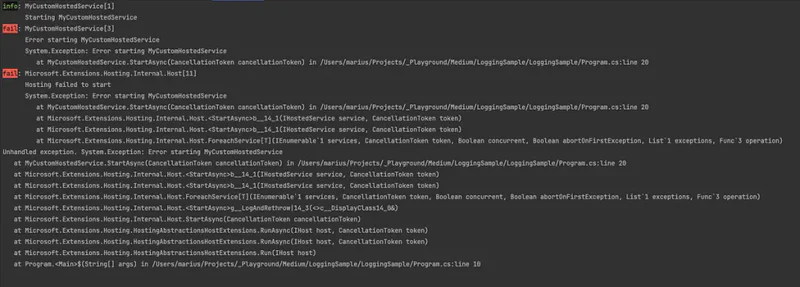
Exceptions happen, and your logs should help diagnose them. Add exception logging to the StartAsync method:
| |
Add the error log message:
| |
Global Logging Messages#
For reusable logging messages, define a global static partial class:
| |
Call it from anywhere in your application.
Wrapping It Up#
Logging is a cornerstone of any robust application. With .NET’s built-in logging framework and a sprinkle of Serilog, you can create a solution that’s easy to maintain, extensible, and effective. Remember, great logs lead to fewer headaches and faster resolutions — future you will thank you.
Go ahead and try it in your next project. And don’t forget to log your progress!
P.S. I’ve also leveraged this logging mechanism in my Blazor blog posts. Curious to see it in action? Get started here:
An Adventure in Modern Web Hosting