
How to implement configurable over-the-air updates on ESP32 based microcontrollers using Azure IoT Device Twins#
One of the biggest reasons to get devices in the cloud, in addition to process millions of sensor data in near real time, is the ability to manage the devices online, i.e. from anywhere in the world.
For example: Imagine we got a machine in a big production hall which could be updated to a new firmware. Normally, to apply this update to a microcontroller you would need to link it to an USB port on a PC. Unfortunately, this is not possible as it would require dismantling the entire machine. This is where it comes to over-the-air (hereinafter referred to as OTA) updates.
When managing IoT devices in relation to Microsoft’s Azure IoT Hub, we are explicitly looking at the management of OTA updates in this blog post.
With regard to Azure, IoT devices are always connected to an IoT hub, whether via a transparent edge gateway or with a direct connection. This is irrelevant for our use case. Via the IoT Hub, we have the option of using device twins and direct methods. Of course, this is not enough, the OTA update function must also be available on the device itself. As storage for our binary firmware files, which we would like to offer to our devices, we configure a simple Azure Blob Storage, which makes our binary files available to the outside world.
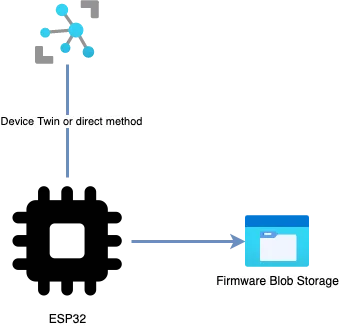
Device Twins or direct methods#
As already mentioned, there are two ways to implement an over-the-air update from the Azure IoT Hub. Here one must differentiate between the purpose of application. If we have a lot of identical devices that should always be kept up to date, it will be necessary to roll out the updates. We speak of roll-out, when we give several devices the opportunity to download and install the update at the same time. The device twins are ideal for this. These also have the advantage that the device is simply given the option of when to start the update process, but more on that later.
On the other hand, if you want to update individual or very different devices, keep it simple and put in as little effort as possible. You can use direct methods to start the update process on the device.
In the following article we will go into more detail about the update process via device twin properties.
Device Twin Properties#
The device twins are mapped in the Azure IoT Hub as JSON data structure. The structure consists of tags, desired and reported properties. We need to focus on the desired properties, because they can be access by the device and the IoT Hub.
IoT Hub#
To let the device know an update is ready for it, we can simply set a desired property on the device twins, which will be synchronized with the device itself. This could be a boolean flag like updateRequired or better updateVersion as string, which indicates the update version number like “1.1.0” for a minor update.
Blob Storage#
After we’ve built a new version of the binary file for the device update, we need to create a new Azure Storage Account with a simple blob container named firmware. It’s necessary to configure the container with “Blob (anonymous read access for blobs only)” as access level. We should name our files with a version number for easier access by the device itself. We recommend to use “Semantic Versioning 2.0.0” which introduced a MAJOR.MINOR.PATCH versioning. So we will name our File “v1_1_0.bin” and upload it to the created blob container with public accessibility.

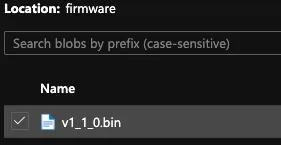
At the container properties in Azure you can look up the URL of your container. For example, ours is https://mediumstorage.blob.core.windows.net/firmware. You will need the URL to configure the firmware OTA endpoint.
Device#
Device Twins#
The most work has to be done in the code of the device itself. As this post aimed for the ESP32 microcontroller family we used ESP-IDF as development framework with ESP-Azure which is based on the Azure IoT C SDK. In the ESP-Azure repository are good samples for integrating device twins which can be easily adapted to our needs.
Complete device twin example
Every time the device twins are updated by IoT Hub the function deviceTwinCallback called with the update payload. When checking for a new device twin desired property updateVersion we could execute our OTA which we will implement in our next step.
Configuration#
Some configurations need to be applied to the device sdkconfig file. E. g. WIFI, Azure connection data or the ESP32 partition table to be used.

We are using the partions_two_ota.csv which is delivered out-of-the-box from ESP-IDF and tells our microcontroller where the partitions are located and which partition is used for the over-the-air firmware file.
Over-the-air update#
The OTA now has nothing to do with azure itself so we could look for integration examples at the ESP-IDF repository.
The OTA class should handle all checks regarding the update. For example, there is a function validate_image_header which will compare the current running firmware version number with the version number of the new binary file.
It’s also necessary to adjust the URL which is used to look for the new binary file. For a hardcoded URL you could set a sdkconfig property CONFIG_EXAMPLE_FIRMWARE_UPGRADE_URL to the URL of the blob container of your storage account like we did in the configuration step. For example
Also you could make this URL configurable due to device twins as well.
After that, we have to write a function, which concatenates the firmware upgrade URL with the name of our blob file, which we can calculate regarding our device twin property. If this is done, your device should try to start the update, but fails due to an error with certificates, which we will fix in our next step.
Certificates#
The sample code looks for a certificate named ca_cert.pem which has to be shipped with the firmware itself. We need to create a folder “server_certs” in our project folder and download the certificate of the Azure Blob Container, which can be achieved by accessing the firmware file URL via Firefox browser like shown in the following tutorial: https://support.mozilla.org/en-US/kb/secure-website-certificate
You will need the certificate chain as PEM-file to trust the Azure blob container. Move the file into the generate server_certs folder and rename it to ca_cert.pem. After that adjust the file “CMakeLists.txt” located in the “main”-folder of your project. Add the following file to the set method to look like the following snippet.
CMakeLists.txt
After we have included the server certificate in our device firmware, the device should be ready to download and install firmware updates by setting a new version number to the device twins.
Versioning#
To version projects, built via ESP-IDF, this can be achieved by placing a file version.txt in the root folder of your project and set the version number as the first line in the file:
1.0.0
Wrapping it all up, we got an working over-the-air example with Azure:

Conclusion#
Handling device firmware updates, better called OTA, by setting a new version in the device twins of an Azure IoT Hub should be a good solution for most of the IoT cases. In addition, ESP-IDF offers us many possibilities to make OTA updates even more stable, such as the possibility of a rollback.